Tutorial 4: Difference between revisions
(→Step 2) |
(→Step 3) |
||
| Line 80: | Line 80: | ||
===Step 3=== | ===Step 3=== | ||
Next, you will define the corresponding Value in the box to the right. | |||
'''Remember:''' A Property links an Item with an aspect of information about it, and a Value is the information we want to capture. | |||
In this example, the Item being added to the database is an instance of a published work. | |||
So, here, we’ll record the Value "work". | |||
Again, when you begin typing the word "work" in the Value field, you will find it available as an auto-suggested entry. Click on the suggestion to select it and auto-complete the text. | |||
https://daap.bannerrepeater.org/w/images/4/4e/Tutorial3_img5.png | https://daap.bannerrepeater.org/w/images/4/4e/Tutorial3_img5.png | ||
''Tip: Auto-suggest functions as a search tool to find if something exists in the database. If no suggestions pop up as you start typing something, make sure you don’t have any typos first, and only then consider making a new Item if required.'' | |||
===Step 4=== | ===Step 4=== | ||
Revision as of 22:56, 30 July 2021
Tutorial 4
Edit Item page
Things you need to know about Item Pages
This is what a new Item looks like after it has been created and added to the archive. It is automatically assigned a unique ID number from the database, this number always starts with the letter Q, in this example the unique ID for the publication “Surviving Art School” is Q1272. Once created an ID cannot be changed, but everything else about an Item is editable.
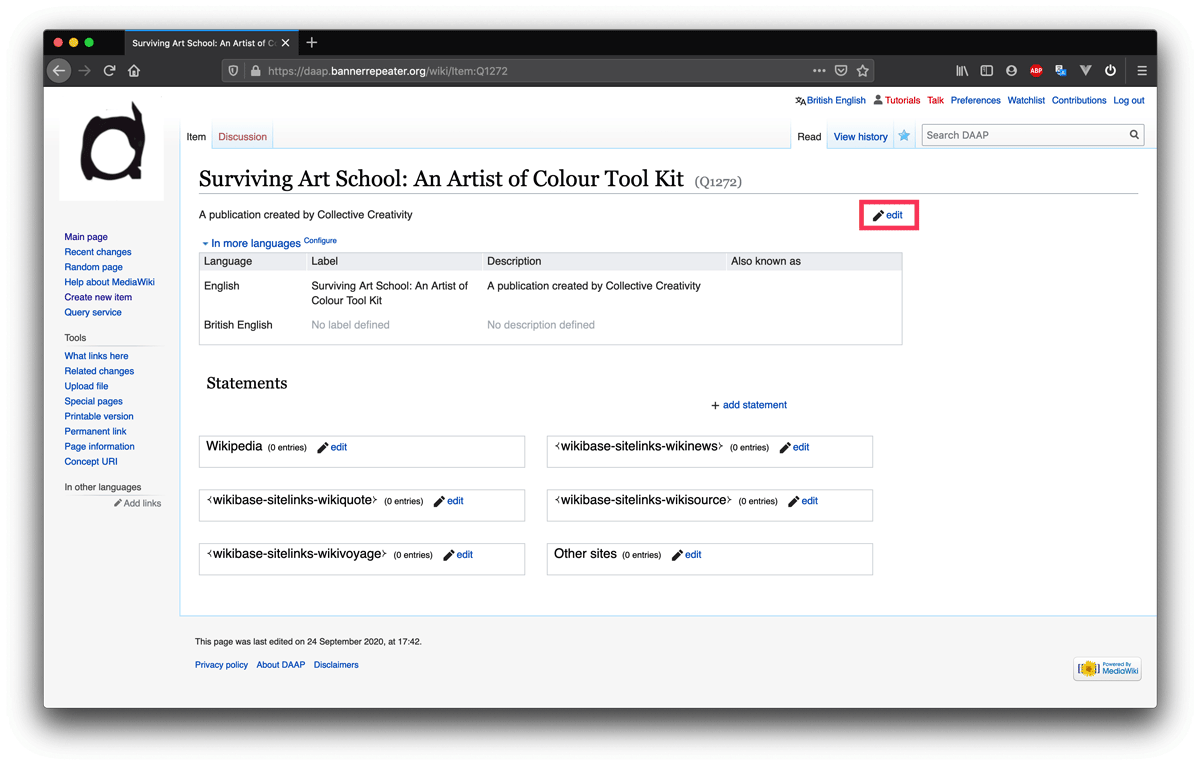
Edit page information: You may edit, or add to the basic information entered in the Create a new Item tutorial; including Label, Description, and Aliases (alternative names the Item is known as), at any time.
To make a change, simply click on the “edit” button at the upper right corner of the page. When you are satisfied with the changes you’ve made, remember to click “save”.
Add statements:To start adding information to describe different aspects of the item you will add “statements”. This will be familiar to you if you have used Wikidata before.
Each Statement includes two main parts: a Property and a single (or multiple) Values.
The Properties and Values attached to the Item for a published work will typically include its creator(s) and its publisher, as well as its format, binding, material, and physical dimensions. You can also add many further details, such as edition size, ISBN, whether it is available as a digital facsimile, and which collections hold a copy.
Properties are a set of links that connect an Item with different aspects of information about it. The Values corresponding to each Property represent unique information about individual Items in the DAAP. See the table with some examples below:
| Item | Property | Value(s) |
|---|---|---|
| Q1272 | Instance of | work |
| Q1272 | title | Surviving Art School: An Artist of Colour Toolkit |
| Q1272 | creators / contributors | Evan Ifekoya, Raisa Kabir, Raju Rage, Rudy Loewe, Said Adrus, Claudette Johnson, Keith Piper |
Our team has created a Data Model, which lists the Properties currently available in the DAAP, alongside examples of possible Values, to support you as you build your Statements. You may find it useful to refer back to the data model whenever you are working in the database. You can also navigate to the Data Model via the Main page, under the heading ‘Data model reference’.
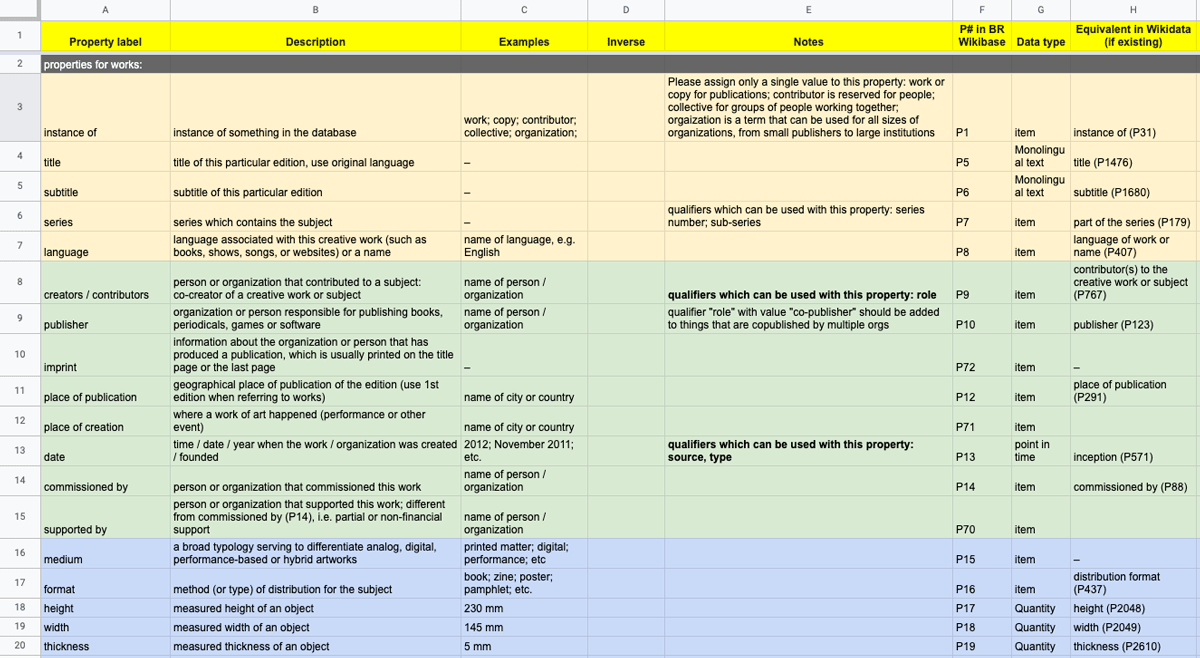
You may only use existing Properties (listed in the Data Model). This is important because we want the database to remain focused and workable. If you feel a Property is missing, please email us (daap [dot] community [at] disroot [dot] org) to discuss your ideas before adding a new one. You do not need to make use of all the Properties listed here. Choose only those Properties which are relevant to the Item you are creating. You are not required to add Statements in any specific order. However, the Data Model introduces one approach, of considering Statements in 5 sets relating to:
1. how the work is referred to in the world, e.g., its title, subtitle, language, and series number;
2. the publication event, e.g., creators/contributors, publisher, imprint, place and date of publication;
3. the material characteristics of the work, e.g., its medium, format, binding, height, width, thickness, and the material processes it comprises;
4. information about a work’s distribution, e.g., its digital facsimiles, distributor links, library links and ISBN;
5. and finally, anecdotal histories including description, distribution and exhibition history.
You may also find it useful to consider this Example Item page which uses blank Values to demonstrate all Properties which can be used to describe different publication Items.
Step 1
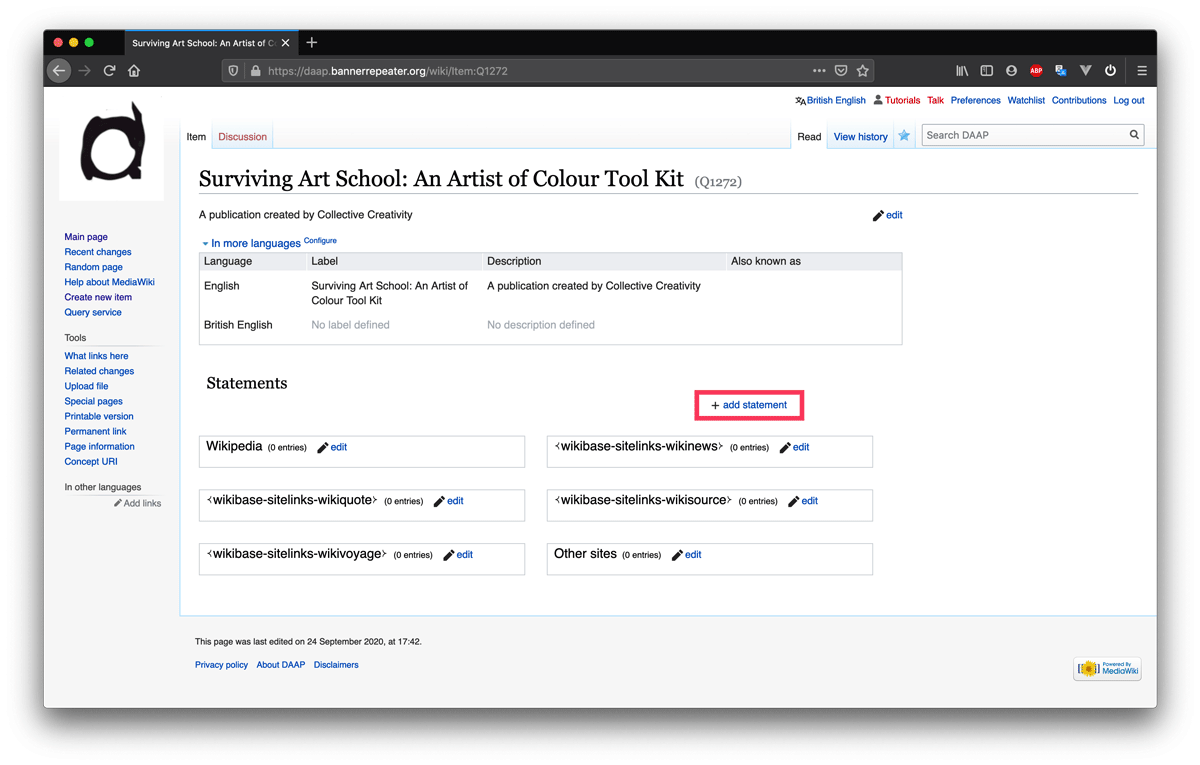
To begin adding Statements about your Item, click on “+ add statement”.
Step 2
Before adding anything else, you must include a Statement to define the Item in terms of what it is an instance of in the database. Unlike most other statements, this one is mandatory rather than optional.
Are you describing a published work?
A person (or group of people) who have created/contributed to a work?
Or an organisation who published a work?
To specify this, you will need to use the Property <instance of>. This is the part of a Statement which enables you to record whether the Item you are describing is an “instance of” a published work, or an “instance of” a creator/contributor, or an “instance of” an organisation.
Start typing "instance of" into the box labelled "Property", it will appear as an auto-suggested option. Click on the suggestion to select it and auto-complete the text.

Step 3
Next, you will define the corresponding Value in the box to the right.
Remember: A Property links an Item with an aspect of information about it, and a Value is the information we want to capture.
In this example, the Item being added to the database is an instance of a published work.
So, here, we’ll record the Value "work".
Again, when you begin typing the word "work" in the Value field, you will find it available as an auto-suggested entry. Click on the suggestion to select it and auto-complete the text.

Tip: Auto-suggest functions as a search tool to find if something exists in the database. If no suggestions pop up as you start typing something, make sure you don’t have any typos first, and only then consider making a new Item if required.
Step 4
Press save. You have now made your first statement.
Now that you know how to add a statement to your Item, we'll go through how to add other kinds of statements.
To add a statement about who the creators/artists/contributors are to your own Item you need to make sure an Item page for the person, or collective, already exists, else you need to create one for them.
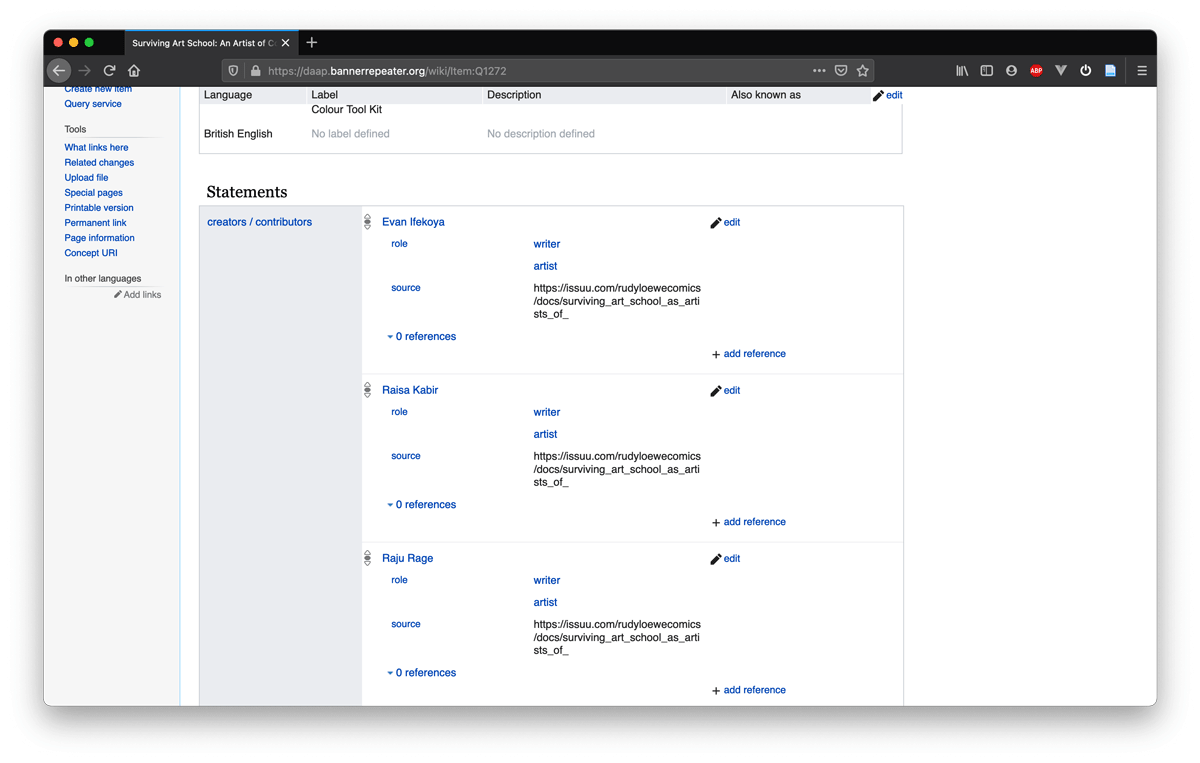
This is a process that you can repeat for adding an item for the publisher, the format, a specific binding method, etc. as needed.
To do so please follow the tutorial Create other items needed to describe a work.